
Setting Up Linnworks
1.5 min read
|Integration Specs:
Supported functions:
- Order Download
- Inventory Sync
- Shipment Confirmation
Workflow
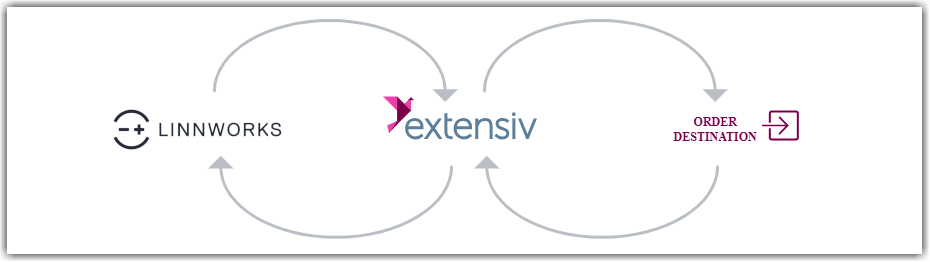
- Sales Order Download from Linnworks to Integration Manager
- Sales Order Delivery from Integration Manager to WMS/OMS
- Shipment Tracking and Inventory Level Upload from WMS/OMS to Integration Manager
- Shipment Tracking and Inventory Level Upload from Integration Manager to Linnworks
Required parameters:
- FTP Host
- FTP Username
-
FTP Password
Step-by-step guide
- Please obtain the FTP Host, Username, and Password from your FTP Host Provider. Extensiv Integration Manager will swap Orders, Confirmation, and Inventory files with Linnwork via FTP connection. Please contact Integration Manager support if you do not have FTP Access.
- Complete the following sections to properly set up your scheduled export/import.
Configure Linnworks Order Export
- Please refer to Linnworks' Data Export - Creating Exports page and create a Scheduled Export for your account.
- Linnworks settings regarding Order Export:
- Export Name: Integration Manager - Orders
- Export Type: Open Orders
- Export File Name Option: NewOrders_[{DATETIME}].csv
- Data File Format:
- File Delimiter: Comma
- Escape: Quotes
- Has Header: YES
- Data Column:
- Column Position 0 --> Channel Reference number
- Column Position 1 --> Order Id
- Column Position 2 --> Order Date
- Column Position 3 --> Customer name
- Column Position 4 --> Address 1
- Column Position 5 --> Address 2
- Column Position 6 --> Address 3
- Column Position 7 --> Town
- Column Position 8 --> Region
- Column Position 9 --> Postcode
- Column Position 10 --> Country code
- Column Position 11 --> Buyer phone number
- Column Position 12 --> Customer email address
- Column Position 13 --> Shipping service code
- Column Position 14 --> Shipping cost
- Column Position 15 --> Order total
- Column Position 16 --> Order tax
- Column Position 17 --> Sub Total
- Column Position 18 --> Total Discount
- Column Position 19 --> SKU
- Column Position 20 --> Quantity
- Column Position 21 --> Line total excluding tax
- Column Position 22 --> Unit cost
- Column Position 0 --> Channel Reference number
- File Delimiter: Comma
- Export Name: Integration Manager - Orders
Configure Linnworks Confirmation Import
- Please refer to the Linnworks' Data Import - Scheduled Imports page and create a Scheduled Import for Confirmation files.
- Linnworks settings regarding Confirmation Import:
- Export Name: Integration Manager - Confirmation
- Export Type: Open Order Tracking Number import
- Export File Name Option: Confirmations.csv
- Data File Format:
- File Delimiter: Comma
- Escape: Quotes
- Has Header: YES
- Data Column:
- Column Position 0 --> Order Id
- Column Position 1 --> Postal Service
- Column Position 2 --> Tracking Number
- File Delimiter: Comma
Configure Linnworks Inventory Import
- Please refer to the Linnworks' Data Import - Scheduled Imports page and create a Scheduled Import for Inventory files.
- Linnworks settings regarding Confirmation Import:
- Export Name: Integration Manager - Inventory
- Export Type: Stock Level
- Export File Name Option: INVENTORY.csv
- Data File Format:
- File Delimiter: Comma
- Escape: Quotes
- Has Header: YES
- Data Column:
- Column Position 0 --> SKU
- Column Position 1 --> Description
- Column Position 2 --> Location
- Column Position 3 --> Stock Level
- File Delimiter: Comma
- Export Name: Integration Manager - Inventory