
Setting Up Omni Logistics
0.3 min read
|Integration Specs:
Supported functions:
- Order Send
- Inventory Sync Pickup
- Shipment Confirmation Pickup
Step-by-step guide
- Launch Integration Management from Extensiv Hub.
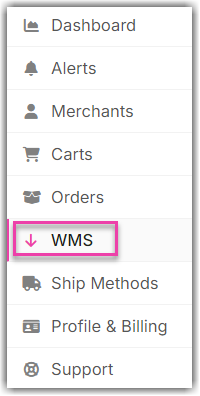
- Click on WMS and click Change WMS next to the dropdown list. Notice that the Change WMS disappears after clicking it, allowing you to select from the list.
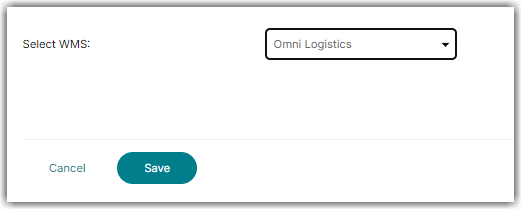
- Select Omni Logistics from the list. Then, click Save.
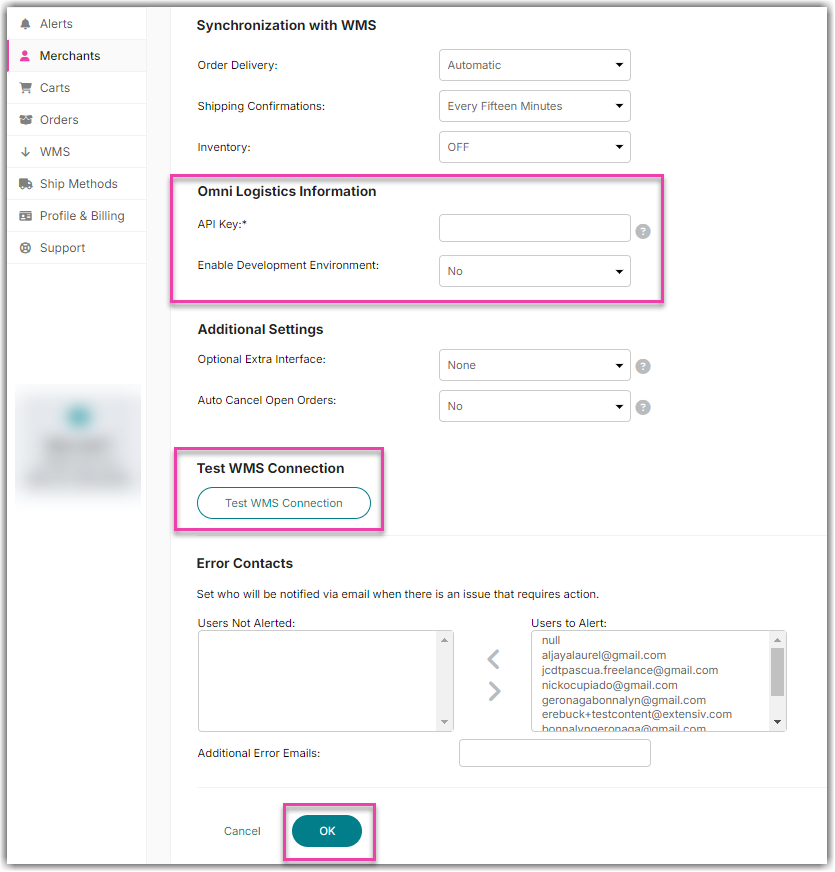
- Navigate to Merchants tab. Click Edit Setup.

- Enter the API key. Then, click Test WMS Connection to confirm successful connection.
-
Once the connection is successful, enter the Stock Code in Carts tab. (Carts > Edit Setup > Test > OK)