
Tech Support Team
To access the Support Portal,
- Login to the Extensiv Help Center.
- Scroll down to the bottom portion of the page and click the Contact Support button. The Support Portal will be the first tile at the top of the page.
- (Optional) Click on any of the following links to be redirected to the corresponding page.
Navigating Support Portal
3PL Warehouse Manager's Support Portal allows for full visibility into your warehouse's support cases and account information. You can submit and view support cases at any time, as well as monitor your API data usage, pay account invoices, and create REST API credentials. This single sign-on experience is integrated within 3PL Warehouse Manager and never requires you to log in to a different application.
This article reviews how to navigate and use the Support Portal.

To learn more about accessibility and general information relevant to submitting support cases, please refer to our Support Portal FAQs.
How to access Support Portal
- Log in to Extensiv.
- Open 3PL Warehouse Manager.

- Click Support in the upper right corner.

Continue reading below to learn about each functionality available in the Support Portal.
Understand the navigation menu
Before you begin interacting with your support cases, it's important to familiarize yourself with the navigation in the Support Portal.
Here is the navigation menu which contains links to each Support Portal page and a search functionality that allows you to search for a specific support case.
Access your account information
You can access critical account information, monitor your account's API usage, and pay invoices by clicking Account from the navigation menu.
There are three main elements on the Account page.
- The Account Information section displays your account's unique TPL Number and GUID, as well as the direct contact information for your dedicated Customer Success Manager (CSM).
Below this, you can find the Quick Links section, which provides links for requesting new API connections, EDI connections, and custom reports.
- The API Usage section provides a visual representation of your account's monthly API utilization, including the Total Allowed bandwidth and Total Used API calls.

- The Charges section populates your 20 most-recent invoices and allows you to select an invoice number to view the invoice summary. You can also pay an invoice directly from the Invoice Summary page.

Most of the available columns in the Charges grid are self-explanatory. The available values for the Status column are defined as follows:- (Clicked): Invoice summary was viewed via the Support Portal or the invoice email
- Current: Invoice that requires payment before the listed due date
- (Opened): Invoice email was opened without viewing the invoice summary
- Paid: Fully paid invoice
- Past Due: Due date has passed and the invoice needs to be paid
- Unapplied: Credit memo which has not been applied to your account (must contact Extensiv Accounting to apply this balance to an invoice)
If you have questions related to your Extensiv subscription or invoices, please reference our Subscription Invoice and Billing FAQs.
Create new cases
You can create a new support case directly from the Support Portal by selecting Create a Case from the navigation menu and completing each field.
You are required to fill out three fields on the form.
- For Subject, provide a short summary of the issue.
- For Description, describe your issue in detail—please provide exact replication steps where possible.
- For Major Product Area, use your best judgment to categorize your current issue. This ensures the case is sent to the correct team.
- Optional: You can also upload up to 10 relevant files to help our Support Agents troubleshoot your issue by clicking Upload Files at the bottom of the dialog.

Once you submit the case, you are redirected to the open case and receive an automated confirmation email. The case is also accessible from the Open Cases page, which is reviewed below.
Manage existing cases
To manage your existing support cases, select Open Cases from the navigation menu.

- A list of your Open Cases displays with specific information, including the case number, the subject of the case, the current status of the case, and when the case was opened.
- If you want to sort the support cases that display in the grid by case number, subject, status, or when it was opened, simply click on the relevant column header to sort the cases in ascending order. Click again to sort in descending order.
- On the far-right, you'll see the Case Status Definitions, which details what each case status means.

- To view a support case, click on the relevant Case Number or Subject.
From here, you can update the case by adding a comment, attaching a file, or closing the case. Continue reading below for guidelines on each of these options.
Add a comment
To add a new comment to the support case, do the following:
- Click New in the top-right of the Case Comments section.

- Enter your comment, then click Add.
- The comment appears as most recent under Case Comments.
- To view comment details, select the arrow next to the name of the person who left the comment. You can also click Expand All to view details of the full thread.
Adding a comment does not reopen or change the status of a support case—if you need to do this, please reply to the email where case correspondence occurred. Once added, you cannot modify or delete a comment.
Attach a file
To attach a file to the support case, use the following steps.
- Click Upload Files in the Files section.

- Use < Ctrl > on your keyboard to select multiple files at once. After you select your file(s), a progress tracker displays.
- Click Done to complete. A confirmation message displays, and the files populate in the Files section of the case.
- To remove an existing file from a case, click Delete next to the attachment.
Alternatively, for a simpler upload, you can drop your files directly from the relevant folder on your device.
Close the case
If your issue has been resolved and the support case has not been closed by a Support Engineer, you can click Close Case in the Case Detail section to move the case to a Closed status.
Review closed cases
You can view your closed support cases by selecting Closed Cases from the navigation menu.

- Similar to your open cases, a list of your Closed Cases displays with the case number, the subject of the case, and the date/time it was closed.
- You can also sort the support cases that display in the grid by case number, subject, status, or when it was opened by simply clicking on the relevant column header.
- On the far-right, you'll see an explanation of the Closed status and a note as to why some cases may not appear on this page.

- If you need to re-open a closed support case, simply reply to the email where case correspondence occurred. If you need help finding a relevant email in your inbox, use the associated case number or subject to search for the latest correspondence.
Manage REST API credentials
If you're working with an external developer and need to provision REST API credentials, select Manage Credentials from the navigation menu.
This page allows you to view, create, and edit REST API credentials. Once created, the API credential enables the developer to access your instance of 3PL Warehouse Manager without having to send a request to our support team.
To access our complete guidelines for this page, please see Getting Started with Credential Management.
Chat
Support Chat is available in all Extensiv applications. Click the chat widget located to the right of your organization name to use this support.

Access to Support Chat is controlled by user permissions in Extensiv. If you do not see the chat widget, it means you do not have the necessary permissions to use the Support Chat features. Only the System Admins of each organization can grant access to Support Chat.
Assigning Support Chat access

Initiating Support Chat
Below are the steps on how to initiate Extensiv's support chat.
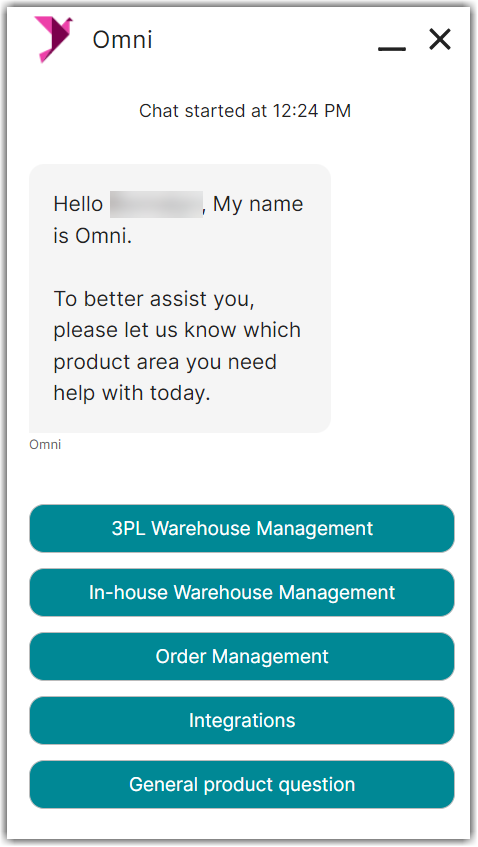
- Click the Chat widget to initiate Support Chat. You will be redirected to our chatbot named Omni.
- Select which product area you need help with.
- Select between Ask A Question or Follow up about an existing issue
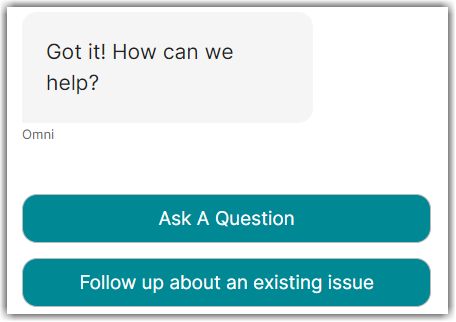
- Provide a brief summary of your issue if you select the Ask a question option.
- Provide the case number of an existing issue if you want to follow up about an existing issue. If you don't know the case number, a new case number will be created.
Chat Idle
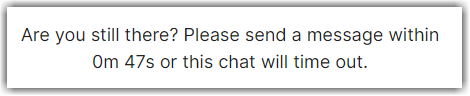
Please be aware that our support chat can end after a certain period of time if the system detects inactivity or lack of interaction from your end.
- Depending on the options you selected above, the Omni chatbot will try to help you resolve your issues through related self-help knowledge articles. If you still need help, you have an option to chat with one of our agents.
- If in any case a support agent is not available to assist you through chat, a case number will be created. Provide a summary of your issue and an agent will reach out to you as soon as possible.
- Once you're done with Support Chat, you can click the Close Chat button or you can also click the Save Transcript of your chat first.
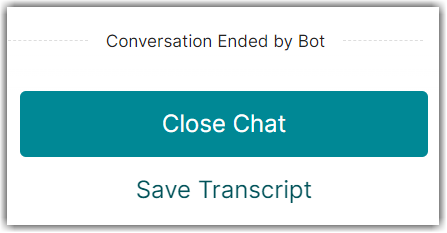
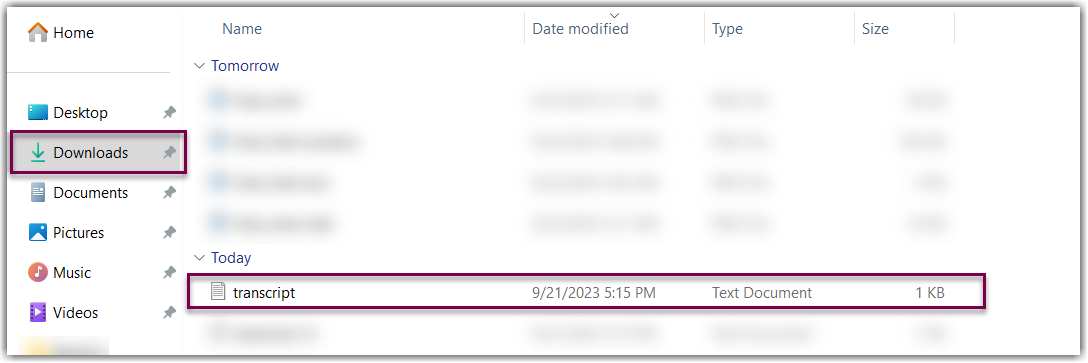
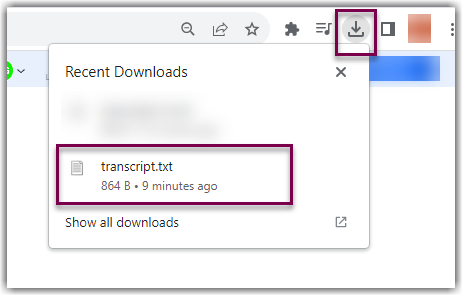
- (Optional) If you want to read the transcript of your chat, simply open the Downloads folder and look for transcript.txt file. Alternatively, You can click the Recent Downloads icon from your web browser.
When emailing Technical Support, your point of contact varies depending on your support needs.
3PL Manager
- General support or technical questions: support-3plwms@extensiv.com
- API questions: api@extensiv.com
- EDI questions: edi@extensiv.com
- For custom report questions: reports@extensiv.com
- Questions regarding any contracts: Contact your Customer Success Manager
Warehouse Manager
- General support or technical questions: support-wms@extensiv.com
- Questions regarding any contracts: Contact your Customer Success Manager
Order Management
- General support or technical questions: support-oms@extensiv.com
- Questions regarding any contracts: Contact your Customer Success Manager
Initial Email to Support
Please provide the specific pages, steps, reference/transaction numbers, and any other details relevant to the issue you're experiencing. Attaching screenshots will also help expedite troubleshooting.
If you intend to open a support case with multiple people included in the email, it is a best practice to include them after you receive your case confirmation email. This will ensure that others’ responses will also be included in your case.
Emailing our general support email address will automatically create a case for you in our case management system and prompt an automatic reply with a case number for your reference. We’ll take care of getting you to the right specialist, in which we strictly adhere to our initial response goal of 8 business hours.
Please note that because all emails directed to our Support email address open a new support case, we ask you to be mindful of including Support on ‘FYI’ emails unless you need us to take direct action. If Extensiv Support cannot add anything to the technical discussion of the issue at hand, Support should not be included in the email thread.
To be compliant with security regulations and to protect yourself and your customers, never share credentials (usernames and passwords) in plain text. Instead, indicate to Support that you have confidential credentials to share and ask the Support Engineer for best practices to do so securely.
Telephone
We recommend contacting us by telephone for urgent or critical issues.
3PL Warehouse Manager
- 888-375-2368 (press 2, then press 1)
Order Manager or Warehouse Manager
- 888-375-2368 (press 2, then press 2)
Integration Manager
805-399-2278 (press 2)
Contacting through phone is a premium support for Integration Manager. If you’re interested in learning more about Premium support, you can go to your Profile page within Integration Manager, or email support, or learn more here.
When calling, please be prepared to provide the following:
• Your name and contact details
• Your company name
• Business impact and context for the issue you're experiencing, including specific project schedules at risk
• The steps that need to be taken to recreate the scenario—the system is highly flexible, so in order to ensure we're troubleshooting effectively. We always need the exact steps you've taken.
• Relevant reference/transaction numbers
• Whether functionality was working previously and what changed
• Any relevant error messages received
• When and how often the problem is occurring
In an instance where we are unable to offer you an immediate resolution to your issue on the phone, we will create a support case for further correspondence regarding your issue and communicate the steps we’ll be taking to resolve the matter as expeditiously as possible.
We highly recommend that, in the unlikely event that you are unable to reach a representative at that time, you stay on the line to leave as much information as possible in a voicemail. We are committed to calling back all voicemails within the hour that they are received.